Your Only Destination To Empower Your Computer Programing Knowledge. Sky is not so high, You can Touch it if You Try
Showing posts with label Smart Computing. Show all posts

Multiple user login in Yahoo Messenger from one PC

This article is about logging into two different accounts from one system using yahoo messenger, the standard Yahoo chat client. use of login both account in one system.
Friends,
As today is an internet world.We can engaged with our relatives through out the world by use of internet.Internet gives us platform for learning, earning etc. We engaged with our friends and relatives through email by the means of personal account like Yahoo mail, Rediff mail and social account like Orkut, Facebook.
we take help of browsers like Internet Explorer, Mozilla Firefox, Google Chrome for using the internet. We can open one account in one browser in one system. Now question arises what should we done for using two or more accounts in the same system.
How to access two account in one system

This post focus on the fact that How one can login into two different yahoo accounts using Yahoo messenger chat client ?
image for yahoo messenger :-

Friends, normally you can login into one yahoo account using yahoo messenger. When you try to open new yahoo messenger, it shows a message that yahoo messenger is already running. To overcome this problem here is a solution :
  • Open run box by pressing Window + R key or by choosing run from start menu.

  • Open Registry Edit by typing regedit and hitting enter button on keyboard.


  • Select HKEY_CURRENT_USER/softwrare/yahoo/pager/test


  • Click on Edit Option.


  • Select New option.


  • add DWORD value and Name it 'plural'.


  • Apply changes and Save.
.
Friends,
I think you will enjoy the this trick. I will give you more tricks soon......Please stay in touch.
Happy Chatting.

Useful computer tips - General useful facts and programming assistance.

This article is a collection of some very essential computer tips and tricks that a good and responsible computer programmes or student must know.

Friends,
If you are a computer programmer then knowing just about algorithm and variables of the programming language is not enough for you. Your must know some basics of a computer system and its architecture.
In current article I have collected some of the essential and useful facts. I hope these will help you.

Creating Some Specific Folders


Friends, data in any operating system is stored in folders and directories. In windows operating system these is some restriction on creating names of the folders. Yes, its true that you could't create the folder with following names :
  • con
  • nul
  • Aux
  • Lpt1
folders.

Reason


All these names corresponds to some of the famous ports either in use or reserved for some special function.
lpt1 is resverd printer in windows operation system.
People search about Why we can't create con folder in computer ?
Its the answer for the question.

Hide a folder without any software


Yes my dear friends. It is possible.
You can hide a folder without boy softare.
To do so please follow these steps :
  • Right Click on the folder.

  • Select Rename Option from the available options.

  • Hold the alt key and press 0160.

  • Release the alt key and hit Enter key.

  • You will see a folder option without name.

  • Now its time to hide that folder image.

  • Right click on the folder.

  • Select properties from the options.

  • Select custmize and then change icon.

  • Select empty folder and hit enter.

  • You have done. The folder is now invisibale but is still selectable.


More tricks are coming soon.

Hiding All Drives in Your Hard Disk and Unhiding them - Learn Computing While Having Fun

This article is a step by step tutorial about How to hide disk drives in your hard disk all at once ?
Friends,
In my previous article How to hide and then unhide your computer hard disk drive , I discuss how one can hide a drive on his/her hard disk. The problem or better to say a negative indication about that method was that it take long time to hide all drives in your hard disk, specially when your hard disk has large number of drives say 10 or more.

It will take a considerable amount of time using the method described above but it doesn't mean that these is no method that can hide all drives at a single operation. Off course it is here and the detailed tutorial about Hiding all drives of a hard disk in single operation:)

Hiding all drives of a hard disk (HD)


If you want to hide all drives of your hard disk then follow the following steps :
-> Press Window key and R letter together from your keyboard.
-> Alternatively you may select Run from program menu, in start button in windows.
-> Type regedit.
It will open the registry open of the windows operating system.
-> Open the hklm\software\microsoft\windows\curentv\polices\exp.
-> Check in right side for the word DWORD, right click on DWORD
-> Click the DWORD VALUE.
-> Change the name "NoDrive" without space.
-> Click the nodrive and write "3FFFFFF" without space.
-> Restart ur PC and all drive will be in hidden state.
This trick will save your time and will hide all your drives in one try.

Error in Notepad : Be Careful while programming - A nice tip.

This article is about the limitation of Notepad. It refuse to write particular number of words with pre-defined letters in each word. To understand it correctly read this article.

Friend,
Notepad tricks are very popular now a days. In my recent article on Virus creation for fun , I show you one use of notepad, but the notepad is not limited to that purpose, that's why it is really very important to understand the working of notepad. Notepad is a text editor and it can be used to program in any language as it allow to define your custom file extension for any code written in Notepad.
Being default text editor of Windows, Notepad become more important and need more focus if you are going to learn programming in any language except for the one that has its own IDE ( Integrated Development Environment, Will be discussed later in this blog ).

Starting Notepad


There are two main ways of starting this application or you can say The Handy Ornament.

Starting From Run


This is the method that I prefer to run any program as it took less time but need more accuracy. Starting from icon is for beginners, not for programmers. Press Windows button + R key on your keyboard and a dialogue will appear. Now write notepad in that dialogue box and hit Enter. Notepad will be opened.

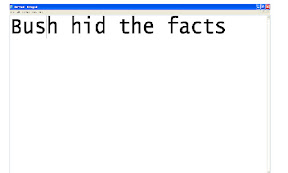
this will open the notepad which is looks like as given below:-

Finding the Icon


This is another method. You may Go to start -> all programs -> Accessories -> Notepad or you may also find a shortcut for it in program files in your Window drive of my computer.

Error in Notepad


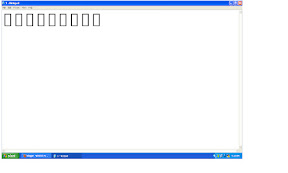
Whenever you type a sentence of 4-3-3-5 letters i.e. A sentence whose first word is of four, second word is of three, third letter is again of three and last letter is of five words, like "bush hid the facts"(without comma or quotes)

And saved it and exit Notepad.


Then on opening the same file, You will find error in sentence.

This is due to the programming of Notepad and sometime due to the programming in fonts. If you have custom fonts then most probably you will get this error. Try this and avoid this in your programs.

How to hide and unhide disk derive?

This article is about hide and unhide the disk derive.
friends,
As we all face many problems when our personal computer is not being a personal but used by many others.they use our disk derive and we can't deny them for use.But we can hide our disk derive.There are many software used for hide disk derive.But i will tell you how we can hide it without software.
  1. Open the command prompt

  2. Type the"diskpart" without space.

  3. After it type "list volume"

  4. it will show pc derive.
  5. Then select volume 2

  6. 2 is number of your D derive.
  7. "Remove" used for hide derive and "assign" used for unhide derive.

Now let it revise:-
Let you want to hide D derive:-
run>cmd>diskpart>list volume>select volume 2>remove
for unhide same process is repeat and use assign in the place of remove.
friends,
i hope you will enjoy it.You can try it on your pc for safety of your derive data.

Microsoft Word Shortcut keys

Friends,
My last article is about Excel shortcut keys ,now i will show you some useful Word shortcut keys.I hope it give benefit to you.

Ms-word Shortcuts


ctrl+A=select all content of the page
ctrl+B=Bold highlighted section
ctrl+C=Copy selected item
ctrl+X=Cut selected item
ctrl+N=Open new blank document
ctrl+O=open option
ctrl+P+Open print window
Ctrl+f=open find box
ctrl+I=italic highlighted section
ctrl+K=insert link
ctrl+U=Underlined highlighted section
ctrl+V=paste
ctrl+y=redo the last action performed
ctrl+Z=undo the last action
ctrl+G=find and replace option
ctrl+H=find and replace option
ctrl+J=Justify paragraph alignment
ctrl+L=Align selected text to left
ctrl+Q=Align selected paragraph to left
ctrl+E=Align selected text too the center
ctrl+R=Align selected text to the right
ctrl+M=Indent the paragraph
ctrl+T=Hanging indent
ctrl+D=Font option
ctrl+shift+f=Change the font
ctrl+shift+>=increase selected font+1
ctrl+shift+<=Decrease selected font-1
ctrl+left(<-)=Move one word to the left
ctrl+right(->)=Move one word to right
ctrl+Home=Move to beginning of the line or paragraph
ctrl+End=Move to the end of the line or paragraph
ctrl+Del=Delete word to the right of the cursor
ctrl+backspace=delete word to the left of the cursor
ctrl+1=Single line space
ctrl+2=double line space
ctrl+5=1.5 line space
ctrl+alt+1=Change text to heading 1
ctrl+alt+2=change text to heading 2
ctrl+alt+3=change text to heading 3
F1= open help
shift+F3=Change the selected text
shift+insert=paste
F4=Repeat last action.
Friends these are some Ms-word shortcuts.I hope you will get it.

Excel shortcut keys

This article is about excel shortcuts.we may save our time by use of these keys.

shortcuts for Excel


F2=Edit the selected cell
F5=Go to specific cell
F7=Spell check selected text or document
Fill=Create chart
Ctrl+shift+;=Enter the current time
ctrl+;=Enter the current date
Alt+shift+f1=Enter new worksheet
Shift+F3Open the Excel Formula window
Shift+F5=Bring up search box
ctrl+A=Select all content of the worksheet
ctrl+B=Bold highlighted section
ctrl+i=Italic highlighted section
ctrl+c=Copy selected item
ctrl+v=Paste
ctrl+d=Fill
ctrl+K=Insert link
ctrl+F+Open find and replace option
ctrl+G=Open go to option
ctrl+H=Open find and replace option
ctrl+u=Underlined highlighted section
ctrl+Y=underlined selected text
ctrl+s=Strikethrough selected section
ctrl+o=Open option
ctrl+N=Open new document
Ctrl+P=Open print dialog box
ctrl+s=save
ctrl+Z+Undo last action
CTRL+f9=Minimize current window
ctrl+F10=Maximize currently selected window
ctrl+F6=Switch between open workbook/window
ctrl+page up and page downa=move between Excel worksheets
ctrl+tab=Move between two or more then two Excel files
ctrl+'Insert value of above cell into current cell
Alt+==create formula to sum of all above cells
ctrl+shift+%=Format number in comma format
ctrl+shift+#=Format number into date format
ctrl+shift+@=format number into time format
ctrl+shift+$=format number into currency format
ctrl+w=Close document
ctrl+space=select entire column
shift+space=select entire row
friends these are sum Excel commands which I show to You.More shortcuts will be presented to you soon.I hope You will enjoy to learn these.

Basic shortcut keys

This article is about basic shortcuts keys which is used by every beginners.We can say that which are used for general purpose.
Alt+F=File menu option in current program.
Alt+E=Edit option in current program.
F1=Universal help for all program.
ctrl+A=Select all text
ctrl+X=Cut selected items
ctrl+C=Copy selected items
ctrl+ins=Copy selected items
ctrl+V=Paste
shift+Del=Cut selected items
shift+ins=Paste
Home=Go to begin of the current line
ctrl+Home=Go to begin of the current document
End=Go to end of current line
ctrl+End=Go to end of the current document
ctrl+z=for undo
ctrl+y=for redo

Very Useful Computer Shortcuts and Smart Tricks

This article is about some finest technics of computing. Many times we face problems using windows and you know, the way to solve these problems is really very simple.
In current article I'll explore some excellent tips to use your computer system or The Stupid Machine smartly.
Friends,
Facing problems in windows is not a big deal but if you know some basic tips you can reduce a lot of hard work and can save your precious time.
Here are some superb windows tips :
  1. Enable and disable usb storage

  2. regedit open.HKLM/SYSM/CURRENTCONTROLSET/SERVICES/USBSTOR

    R SIDE START ENTER 3 FOR ENABLE USB STORAGE
    4 FOR DISABLE THE USB STORAGE.
  3. Some other computer shortcuts

  4. Window key+r=Open run program
    Windod key+f=Display the window search find
    window key+e=open the my computer
    Window key+d=Show the desktop
  5. Function keys

  6. Window key+f1=Help and support center
    f2=Rename for selected items
    f2+ctrl=print preview of powerpoint
  7. Change the passward of administrator

  8. open run program & type command. Another window open.Type net user administative 123.
  9. For automatic reading of pdf file

  10. If you want to read the pdf file automatically move down.
    open the pdf file and type->control+shift+j.

These were some nice and useful window shortcuts and tips. I am sure you have enjoyed these.
More coming soon > > > >